Do Your Own Research
Any software, tools, or services mentioned in this article are referenced for educational purposes only. Always verify downloads from official sources, check independent reviews, and scan files with antivirus software before installing. The Nomad Partnership accepts no liability for any damage, data loss, or security issues that may arise from using third-party software. Read our full disclaimer →
A practical comparison to help normal people choose a password manager and set it up safely.
You don't need to be a security expert to protect yourself online. You just need one good tool and 15 minutes. This guide walks you through the three most popular password managers, compares them honestly, and gives you the exact setup steps that matter.
No jargon. No fearmongering. Just a clear, practical path to better security.
The honest truth: you don't have a password problem, you have a reuse problem
Most people don't get hacked because their password was "weak."
They get hacked because:
The same password is reused across sites
One site gets breached
Attackers try the same login everywhere else
A password manager fixes this by letting you use unique passwords without memorising them.
One breached site can compromise every account that shares the same password.
What a password manager does (in plain English)
A password manager:
Stores your logins in an encrypted vault
Generates strong passwords for you
Autofills logins on websites and apps
You remember one strong master password. The tool handles the rest.
Your encrypted vault is the single secure place for every login you own.
The three options we're comparing
Bitwarden
Strong value1Password
Very polishedLastPass
Well-known brandWhat to look for (ignore marketing)
Use this checklist when choosing:
Cross-device sync: phone + laptop + browser
Easy recovery options: what happens if you forget your master password?
2FA support: can you add an extra login step?
Sharing: can you share logins safely with a partner?
Export: can you leave later without pain?
Quick comparison (beginner view)

All three are solid options. The right choice depends on your priorities.
Ease of use
Bitwarden
Good
1Password
Excellent
LastPass
Good
Price/value
Bitwarden
Excellent
1Password
Good
LastPass
Varies
Sharing
Bitwarden
Good
1Password
Excellent
LastPass
Good
Trust posture
Bitwarden
Strong
1Password
Strong
LastPass
Mixed (historical incidents)
The setup steps that matter (do these, not "later")
Make it long, not clever. A passphrase with 4–6 random words works best. Add a number or symbol if required. Example approach: "correct-horse-battery-staple" style — memorable but impossible to guess.
2FA = two-factor authentication. It means you need your password plus a second code (usually from an app like Google Authenticator or Authy). This protects you even if your master password is stolen.
This is what makes autofill work. Without it, you're copying and pasting passwords manually — which defeats the purpose.
Most browsers can export saved passwords as a CSV file. Import them into your password manager, then delete them from the browser after verifying everything works.
Start with: your email account, banking, social media. These are the highest-value targets. Let the manager generate strong replacements.
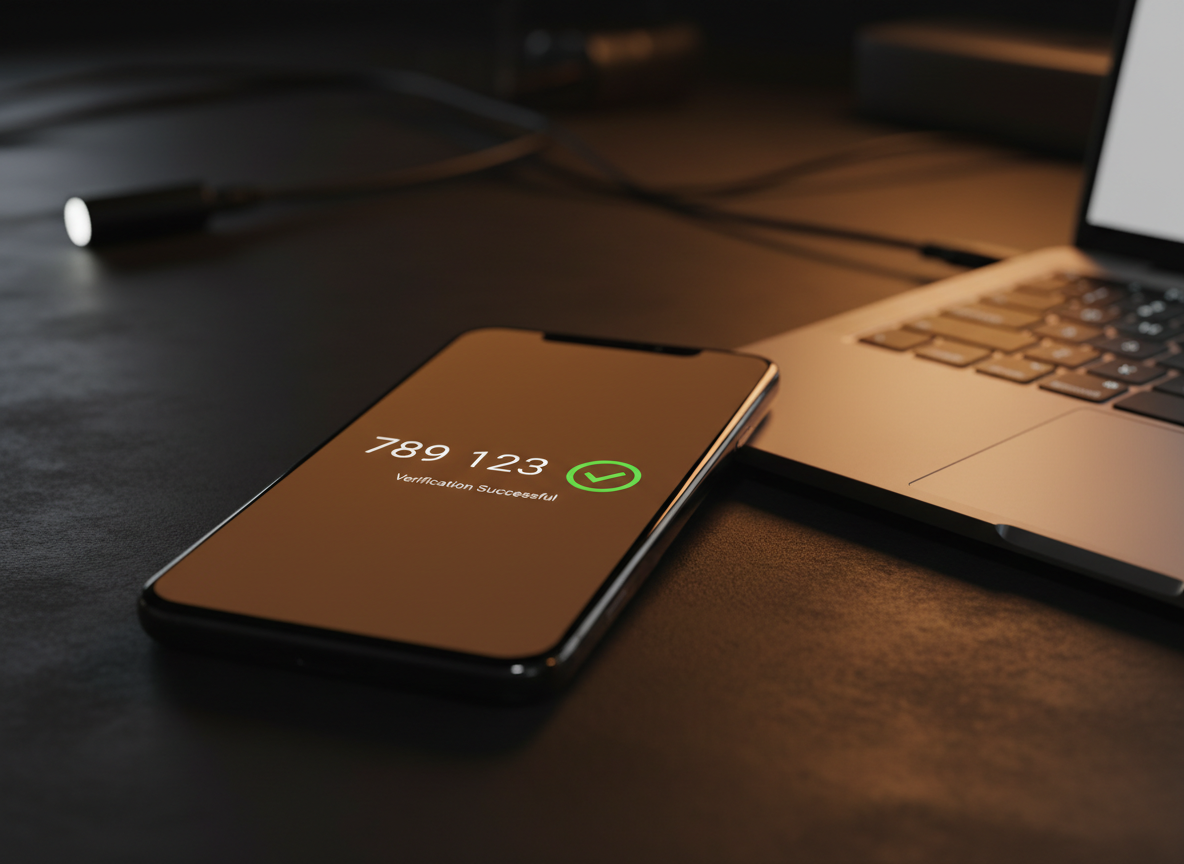
2FA adds a second layer of protection. Even if someone gets your password, they can't get in without the code.
Common mistakes
Using a master password you'll forget
Not enabling 2FA
Keeping passwords saved in the browser "just in case"
Not backing up recovery codes
A simple weekly security habit (10 minutes)
Once a week:
Update 3 old passwords
Check for reused passwords
Review your vault for junk accounts you can delete
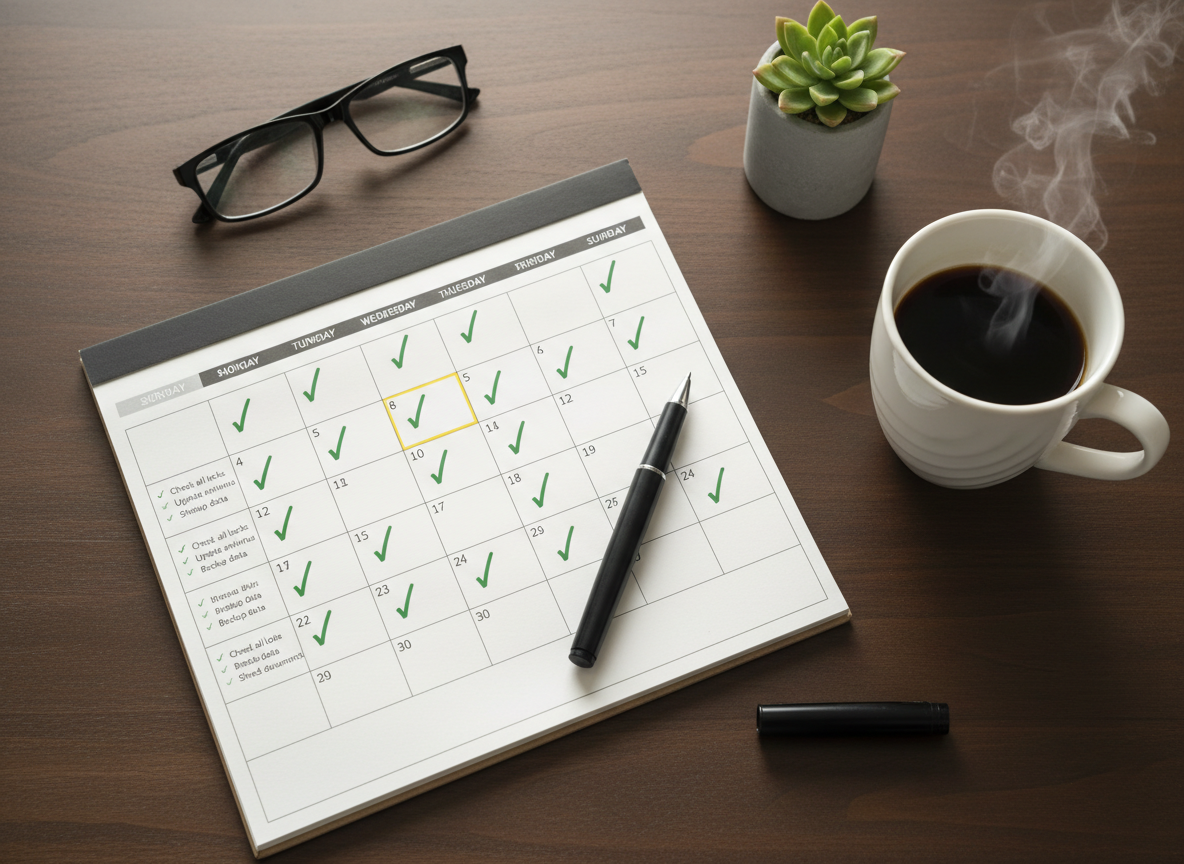
10 minutes a week keeps your digital life secure. Build the habit and it becomes automatic.
"The best time to set up a password manager was the day you created your first online account. The second best time is today."
Disclosure: This article may contain affiliate links. If you purchase through them, we may earn a commission at no extra cost to you.