Do Your Own Research
Any software, tools, or services mentioned in this article are referenced for educational purposes only. Always verify downloads from official sources, check independent reviews, and scan files with antivirus software before installing. The Nomad Partnership accepts no liability for any damage, data loss, or security issues that may arise from using third-party software. Read our full disclaimer →
You know the drill: create a password, forget it in 3 weeks, click "forgot password," create a new one that's slightly different, repeat 47 times.
Or worse: you use the same password everywhere. Which is a security nightmare, but at least you remember it.
A password manager solves both problems. It's not fancy. It's just practical. This guide walks you through choosing one, setting it up, and making it stick.
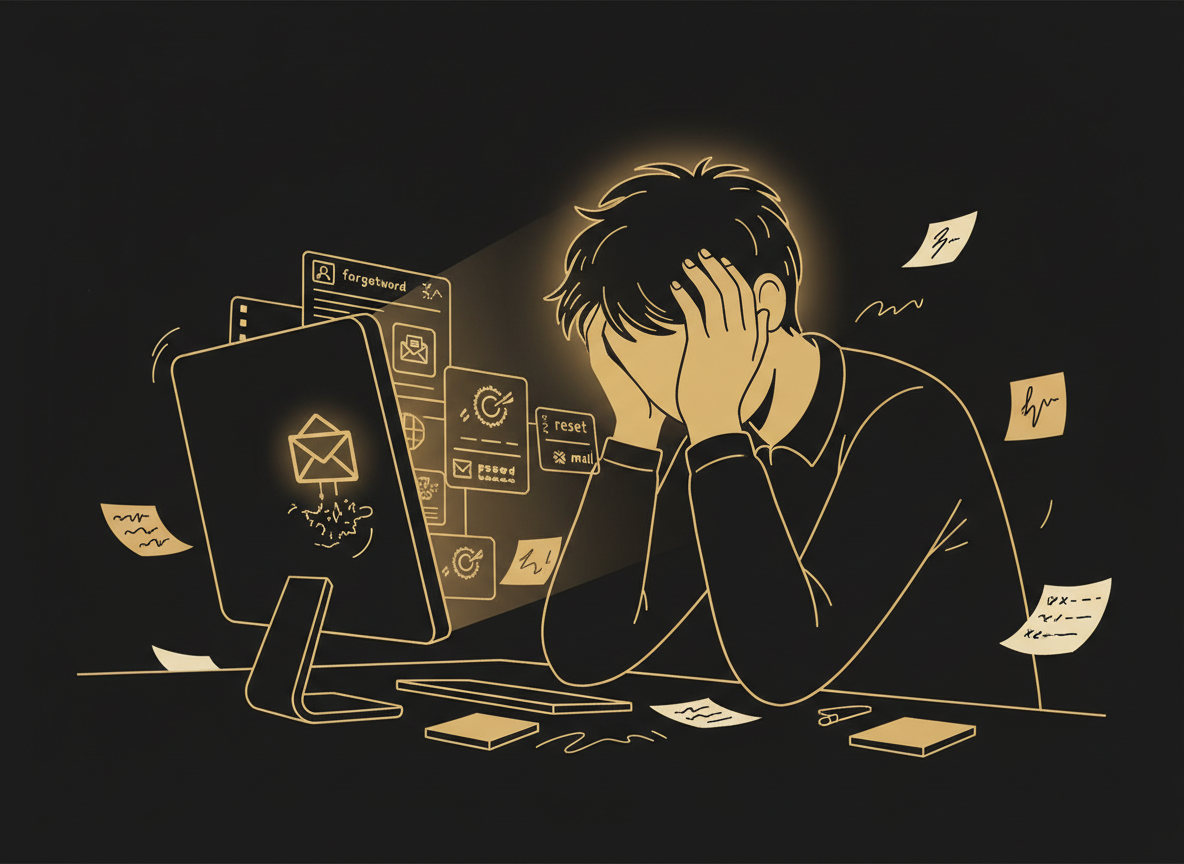
The password problem is real. A password manager is the simplest solution.
Why you need a password manager
A password manager solves the core problem: you can't remember 50+ strong passwords, and using the same password everywhere is a security nightmare.
Stores all your passwords: In one encrypted vault. You only remember one master password.
Generates strong passwords: You don't have to think them up. The manager creates random, unbreakable ones.
Auto-fills login forms: One click and you're logged in. No typing, no forgetting.
Syncs across devices: Your passwords follow you to phone, laptop, tablet.
Encrypted end-to-end: Only you can access your vault. The company can't see your passwords.
How password managers actually work (the simple version)
Think of it like a locked safe:
You create one master password (the key to the safe)
Everything else goes inside the safe (encrypted)
Only you can open it with your master password
The company running the service can't see what's inside
This is called "end-to-end encryption." It means:
Your passwords are scrambled in a way only you can unscramble
Even the company can't access them
If hackers steal the company's database, they get gibberish
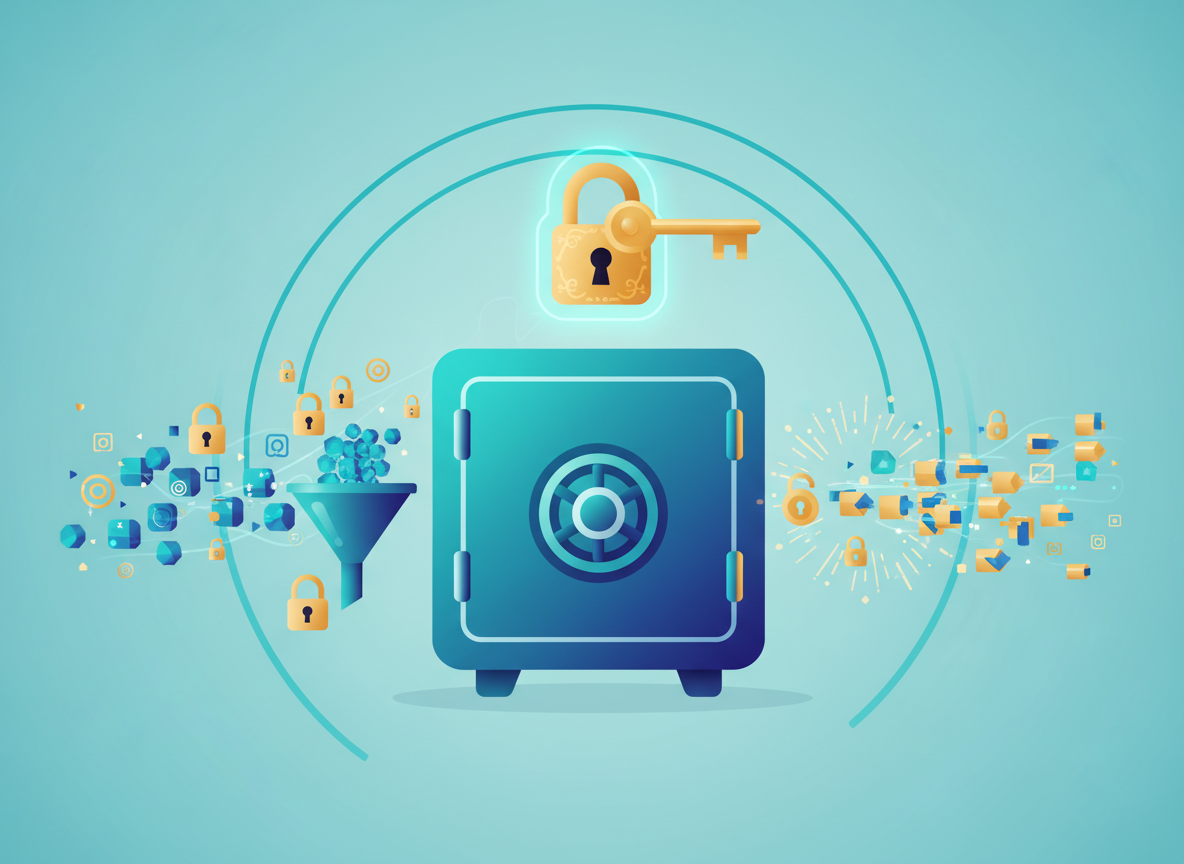
End-to-end encryption means only you can access your passwords.
Real talk: This only works if your master password is strong. Make it long (16+ characters) and unique. Don't use your dog's name.
The best password managers for beginners (and why)
Bitwarden (Free or £10/year)
Best for: People who want free + reliable
Why: Open-source (code is public, so experts can audit it), works on everything, no gimmicks
1Password (£4.99/month)
Best for: People who want simplicity + support
Why: Easiest interface, great customer support, works seamlessly
LastPass (Free or £3/month)
Best for: People already in the LastPass ecosystem
Why: Popular, integrates with browsers, lots of tutorials online
My recommendation for beginners: Start with Bitwarden free. If you like it, upgrade. If you want more hand-holding, try 1Password.
Step-by-step: Setting up your first password manager
Pick one from above. Go to their website. Click 'Sign up.' Create an account with your email.
This is the ONE password you need to remember. Make it: At least 16 characters, A mix of uppercase, lowercase, numbers, symbols, Something only you know (not your kid's name, not your birthday). Example (don't use this): BlueSky$2024!Nomad
Most password managers have a browser add-on. Install it. It makes auto-fill work.
You can: Manually add old passwords (copy/paste from your notes or browser), Let it capture new ones (when you log into a site, it asks 'save this password?'), Import from your browser (most managers let you bulk-import from Chrome, Firefox, Safari). Start with the important ones: Email, Banking, Social media, Work accounts. Don't worry about getting every password on day one.
Log out of a site. Log back in using the password manager's auto-fill. Make sure it works.
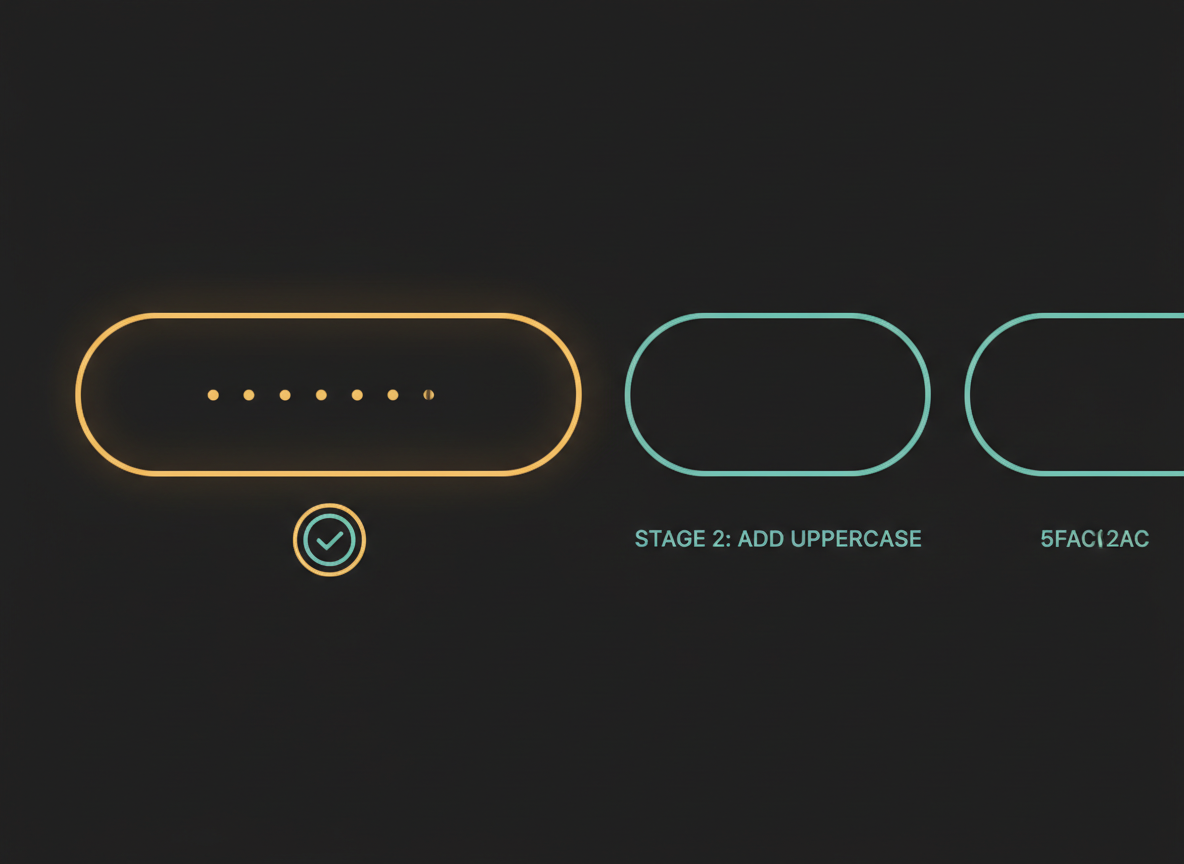
Setting up a password manager takes 5 minutes and lasts a lifetime.
The weekly security checklist (5 minutes)
Once a week, spend 5 minutes on this:
Check if any of your passwords appear in a data breach (most managers have a 'security audit' feature)
Update any weak passwords (the manager will flag them)
Review recent logins for unfamiliar activity
Ensure your master password is still something only you know
That's it. This catches 90% of problems before they become real.
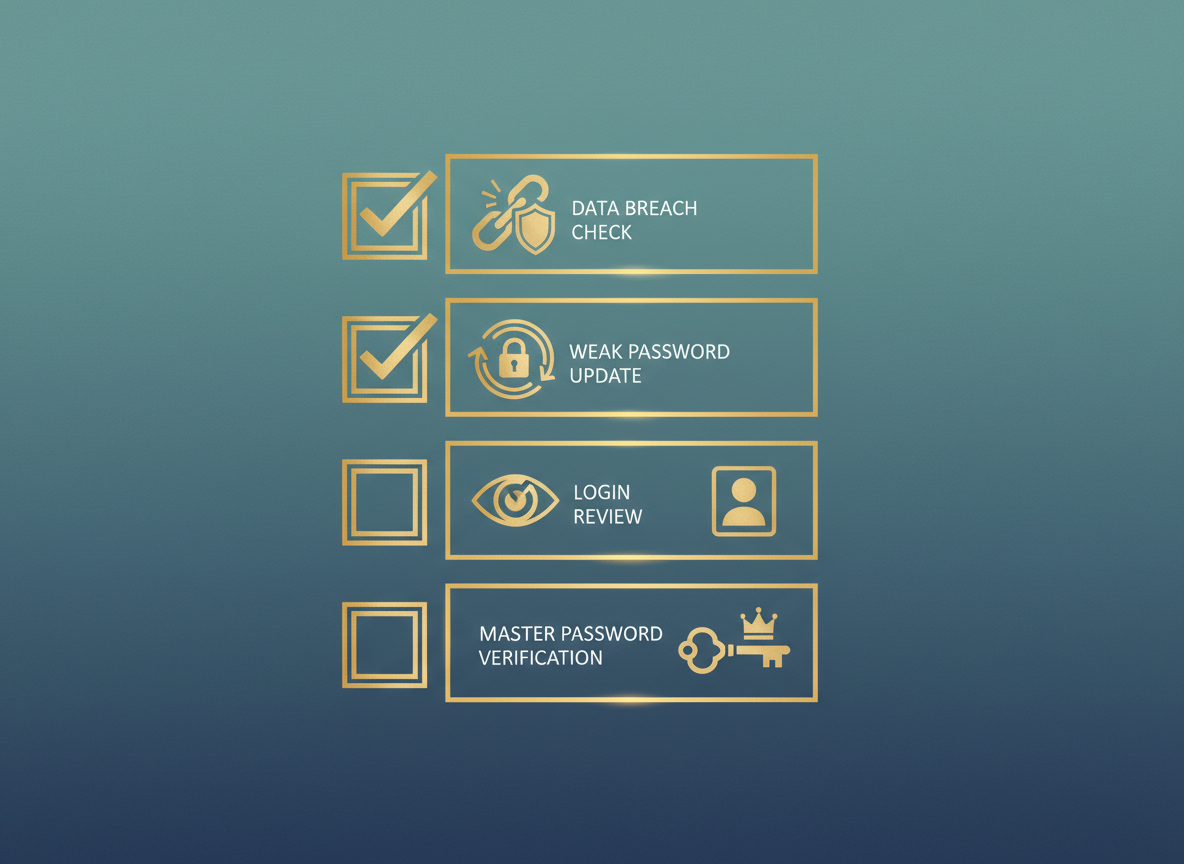
A 5-minute weekly check prevents most security headaches.
Common mistakes beginners make (and how to avoid them)
Mistake: Forgetting your master password
What happens: You're locked out forever. No recovery option.
How to avoid it: Write it down and store it somewhere safe (a safe, a locked drawer, not a sticky note on your monitor).
Mistake: Using a weak master password
What happens: Hackers can guess it and access everything.
How to avoid it: Make it long (16+ characters), random, and unique.
Mistake: Not updating old passwords
What happens: You're still using 'Password123' from 2015 on 6 different sites.
How to avoid it: When you log into an old account, let the manager generate a new strong password and update it.
Mistake: Panicking when the manager goes down
What happens: The service has an outage and you think you've lost everything.
How to avoid it: Most outages last minutes. If it's longer, you can still log in manually using your master password to retrieve a password from the vault.
Mistake: Not backing up your master password
What happens: You die, get hit by a bus, or forget it, and no one can access your accounts.
How to avoid it: Tell a trusted person where your master password is stored (in a will, a safe deposit box, etc.). Or use your manager's 'emergency access' feature to give someone temporary access.
What does it cost?
Here's the honest breakdown:
Bitwarden Free
£0Unlimited passwords, unlimited devices, basic 2FA. Genuinely good for most people.
Bitwarden Premium
£10/yearAdvanced 2FA, password health reports, encrypted file storage. Worth it if you want the extras.
1Password
£4.99/month (£50/year)Everything you need, polished interface, excellent customer support.
LastPass Free
£0Works on one device type (mobile or desktop — you pick). Limited but usable.
LastPass Premium
£3/monthAll devices, dark web monitoring, emergency access.
Bottom line: Start free. If you use it daily and want the extras, £10/year for Bitwarden Premium is one of the best value security purchases you can make.
What happens if you don't use a password manager?
Time wasted: The average person spends 11 minutes per week resetting passwords. That's nearly 10 hours a year.
Security risk: Reusing passwords means one breach exposes every account. Hackers use 'credential stuffing' — they try your leaked password on every major site.
Stress: Forgetting a password at the wrong moment (buying something, logging into work, accessing medical records) is genuinely stressful.
Financial loss: Compromised accounts can lead to fraud, identity theft, and hours of recovery work.
Your action plan: start this week
You don't need to do everything at once. Here's a simple habit-building plan:
Sign up for Bitwarden (free). Create a strong master password. Install the browser extension.
Add your 10 most-used passwords. Let the manager capture new ones as you log in.
Use the weekly 5-minute security checklist. Update weak passwords as you encounter them.
"The best time to set up a password manager was the day you created your first online account. The second best time is today."
It takes 15 minutes to set up. It saves hours over the course of a year. And it makes your online life genuinely more secure — without requiring you to remember anything more than one strong password.
That's a good trade.
Disclosure: This article may contain affiliate links. If you purchase through them, we may earn a commission at no extra cost to you.